Account & sign-in
Your account is the owner of every tunnel, webhook and service token you create. This page covers how to sign in, keep your credentials current, manage your account slug (the namespace baked into every public tunnel URL), audit your live sessions, and delete the account when you’re done. Everything here lives on the dashboard’s Account page; the underlying endpoints are listed so headless and scripted clients can drive the same flows.
Sign up & sign in
Section titled “Sign up & sign in”You can authenticate two ways, and you can use both on the same account:
- Email + password.
POST /auth/signupcreates the account; the password must be 8–128 characters. Signup immediately emails a verification link and returnsemail_verified: false.POST /auth/loginverifies the credentials and issues a session. - Continue with Google or GitHub (SSO). The “Continue with…” buttons on
/loginand/signupstart the OAuth flow atGET /auth/oauth/<provider>/start. See SSO and linking below.
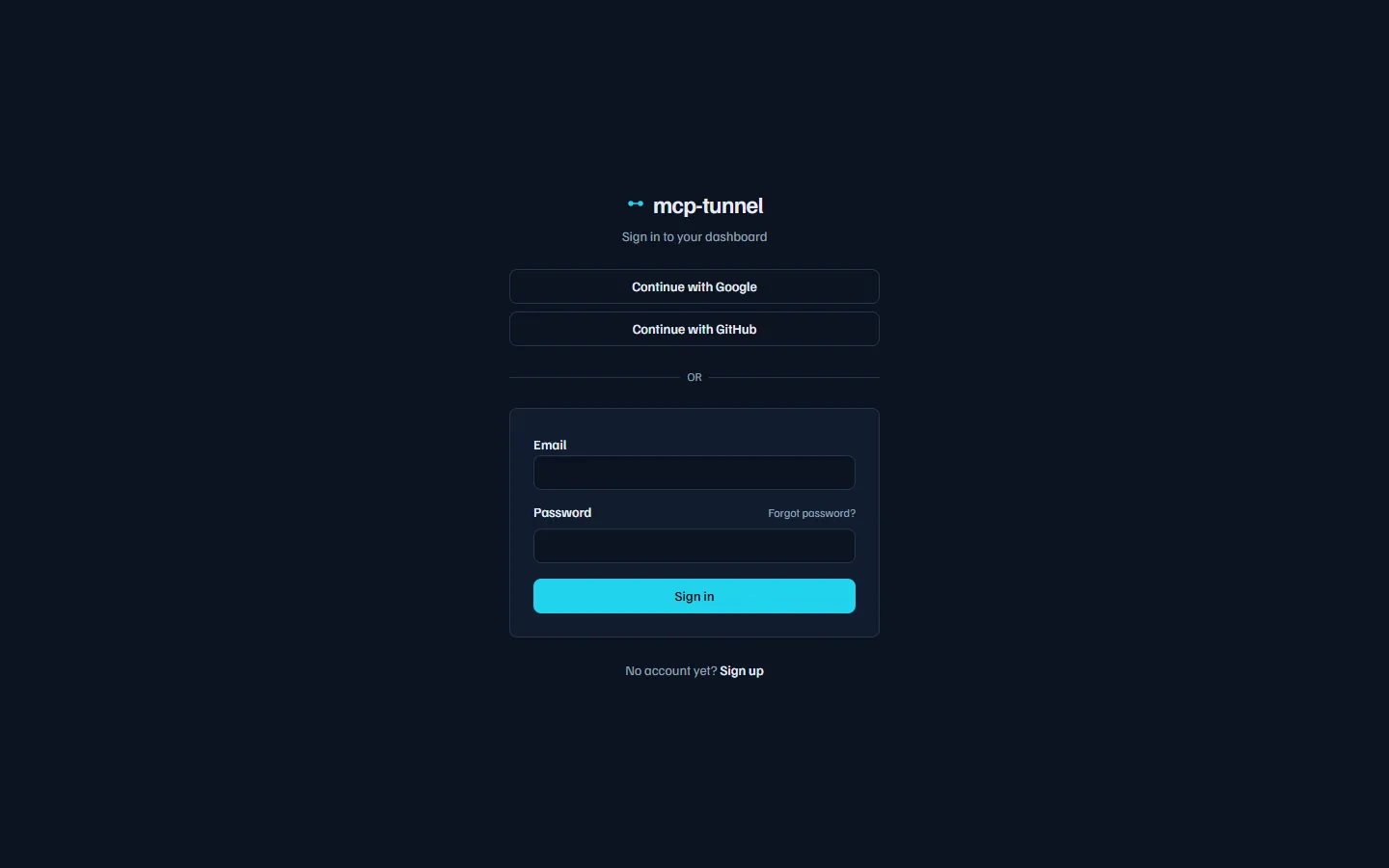 The sign-in screen: email + password, plus one-click Google and GitHub.
On a successful login the API sets an HttpOnly session cookie (the dashboard
authenticates cookie-only) and also returns a bearer token in the JSON body for
API clients that send Authorization: Bearer …. The login response carries
email_verified so the dashboard can show the verification banner without an
extra round-trip.
When a new network signs in
Section titled “When a new network signs in”If a login comes from a network you haven’t used before, mcppipe emails you a heads-up (“new login alert”) so an unexpected sign-in is visible. The Last login card on the Account page shows the time and a masked IP of the most recent sign-in.
Verify your email
Section titled “Verify your email”A freshly created account is unverified. The verification link (sent on signup)
hits POST /auth/verify-email, which flips your account to verified and sends a
one-time welcome email. While you’re unverified the dashboard shows a banner; use
its Resend action (POST /auth/resend-verification, capped at 5 per 15
minutes) if the original link expired. A replayed verification link is a no-op —
it won’t re-send the welcome email.
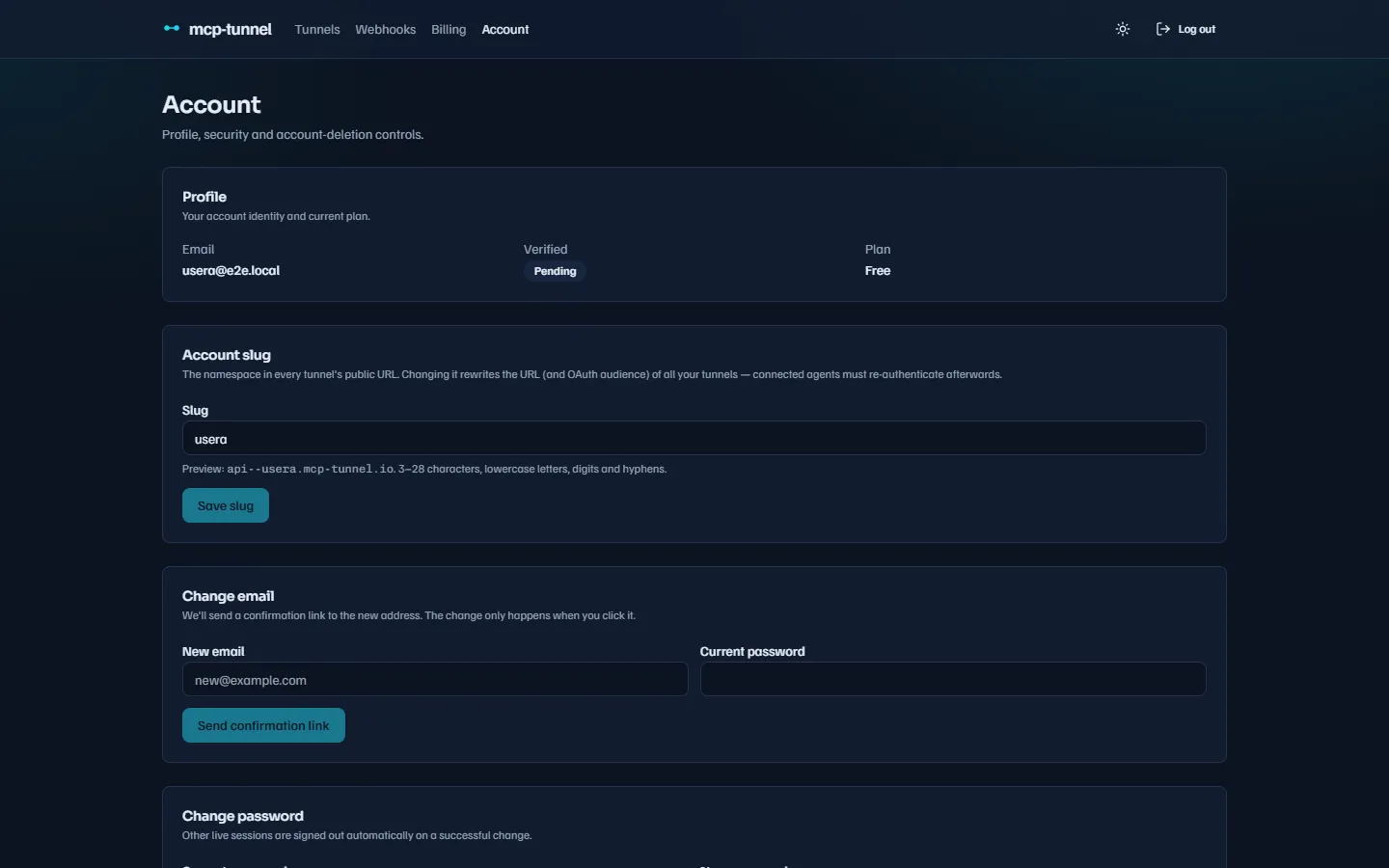 The Profile card shows your email, verification status and current plan.
Change your email or password
Section titled “Change your email or password”Both live on the Account page and both require your current password as a defence against a hijacked session.
- Change email (
POST /auth/change-email) is a double-confirm flow: the confirmation link is sent to the new address, so a typo can’t lock you out. Clicking it callsPOST /auth/confirm-email-changeand flips your address. A wrong password returns401; an address already in use returns409. - Change password (
POST /auth/change-password) re-hashes your password and signs out every other session, leaving your current one alive. The new password must be 8–128 characters.
Forgot your password
Section titled “Forgot your password”If you can’t sign in, use the Forgot password link. POST /auth/forgot-password
always returns 204 (even for an unknown email, so it can’t be used to probe who
has an account) and emails a reset link to known addresses. The link calls
POST /auth/reset-password, which sets the new password and revokes all live
sessions so a stolen session can’t outlive the reset.
Account slug
Section titled “Account slug”Every tunnel is reachable at a per-account public host:
https://<subdomain>--<account-slug>.<zone>/mcpThe account slug is the <account-slug> component shared by all of your
tunnels. For example, with the slug acme a tunnel whose subdomain is notes
is served at https://notes--acme.mcppipe.dev/mcp. A slug is assigned
automatically at signup (derived from your email) and you can rename it later on
the Account page via PATCH /api/account/slug.
The Account slug card previews the composed <subdomain>--<slug>.<zone> host as you type.
Slug rules (enforced server-side):
- 3–28 characters
- lowercase letters, digits and hyphens only
- no leading or trailing hyphen
- may not contain
--(that sequence separates the subdomain from the slug in the DNS label) - not a reserved label (e.g.
api,www,admin,login,dashboard) - globally unique — a taken slug returns
409 Conflict
SSO (Google / GitHub)
Section titled “SSO (Google / GitHub)”You can link Google and GitHub from the Connected accounts card. “Connect”
sends you through GET /auth/oauth/<provider>/start?intent=link, which binds the
provider to your currently-authenticated account on return.
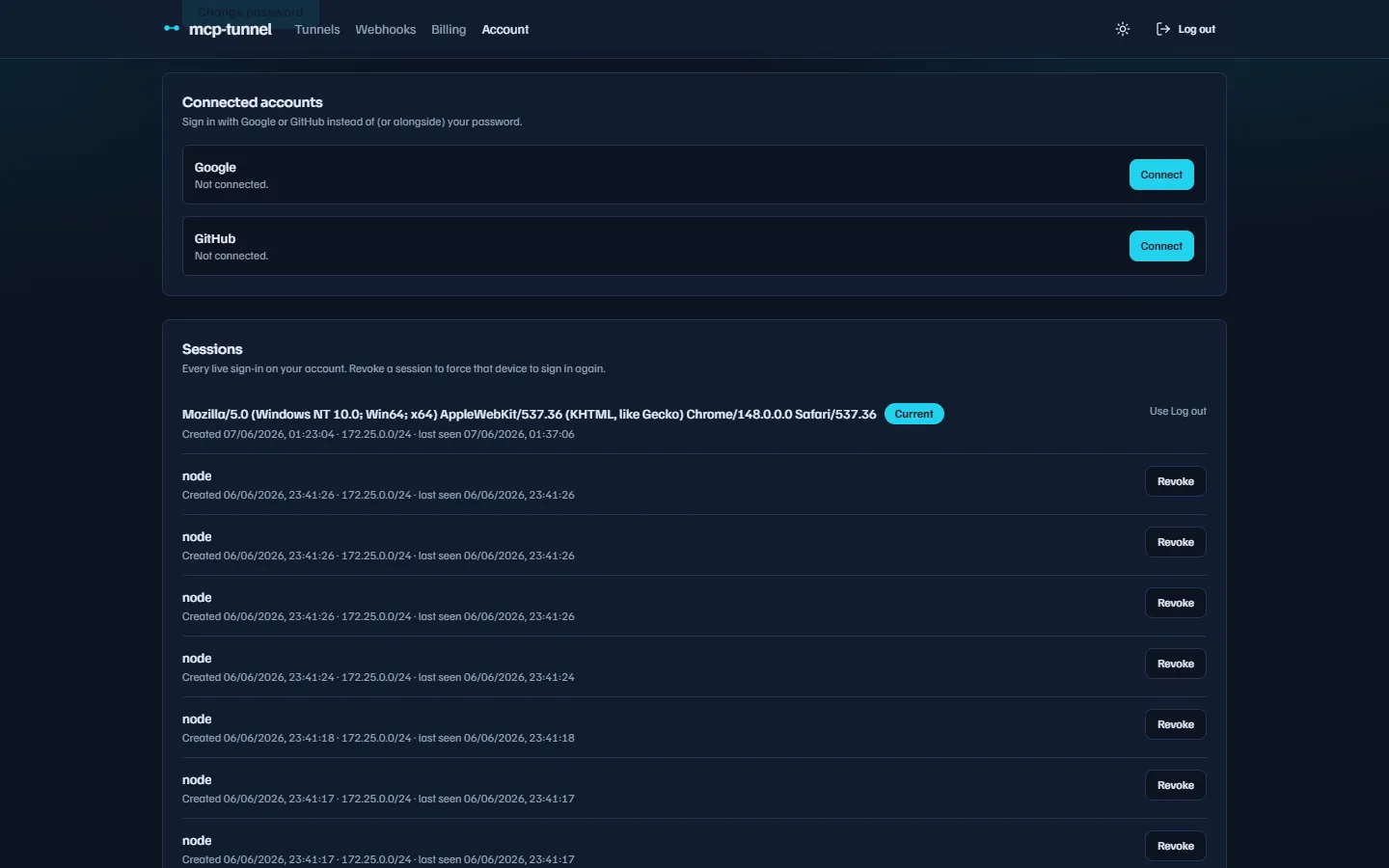 Connected accounts: link or unlink Google and GitHub. Each linked row shows the provider email and link date.
Linking is deliberately conservative. If you sign in with an IdP whose email already matches a password account, mcppipe asks you to confirm with your local password before binding the two — it won’t silently merge identities.
Unlinking calls DELETE /api/account/sso/<provider>. If you have no local
password and this is your only sign-in method, the unlink is refused with
400 (“set a password before disconnecting your last login provider”) so you
can’t lock yourself out.
Sessions
Section titled “Sessions”The Sessions card lists every live sign-in on your account
(GET /api/sessions): browser/User-Agent, a masked IP, when it was created and
when it was last seen. Your current session is tagged Current.
Each live session can be revoked individually; your current one shows a “Log out” hint instead.
- Revoke a session (
DELETE /api/sessions/<id>) forces that device to sign in again. The eviction takes effect immediately (the cached session is dropped, not left to expire). - You can’t revoke your own session here — use Log out (
POST /auth/logout) for that. Log out everywhere (POST /auth/logout-all) revokes every session you own, including the current one, and is the right move after a suspected compromise.
Last login
Section titled “Last login”A dedicated card shows the timestamp and masked network of your most recent sign-in, mirroring the new-login alert email.
Delete your account
Section titled “Delete your account”The Danger zone performs a hard, irreversible delete (DELETE /api/account).
To confirm you must type your email and enter your password. There is no
recovery and no soft-delete window — deletion cascades to your tunnels, sessions,
webhooks, service tokens and usage counters, and every active session stops
working at once. A wrong password returns 401.
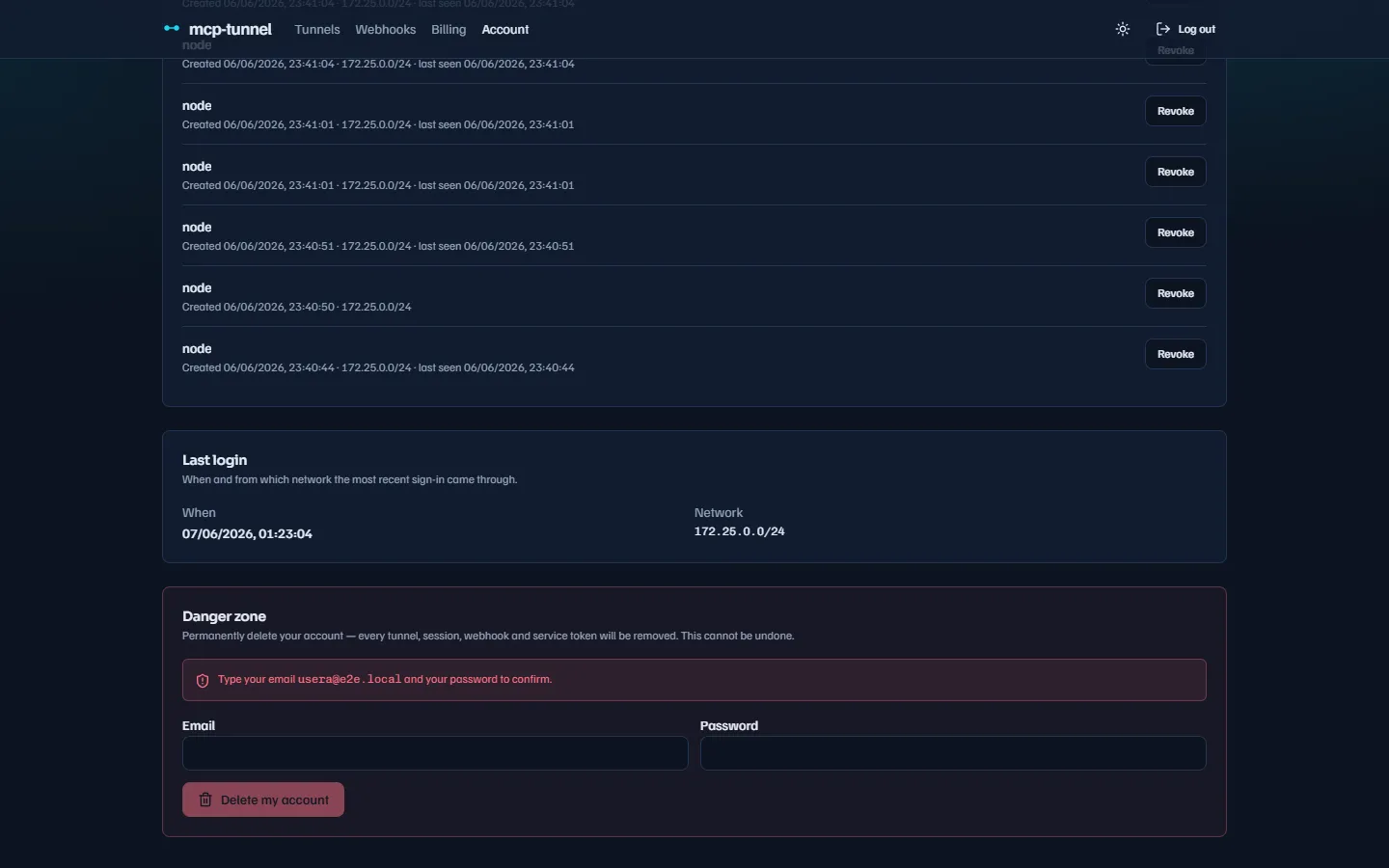 Account deletion is double-confirmed (type your email + password) and cannot be undone.
See also
Section titled “See also”- Authentication: OAuth & Service Tokens — grant agents access to a tunnel
- Custom domains & TLS — how the slug feeds the CNAME target
- Billing & plans — your plan, quotas and seat model
- Dashboard reference — tunnels list, clone and soft-delete